WhatsApp Chat History WhatsApp has revolutionized the way we communicate—whether for personal conversations, business messages, or group chats. But with the constant flow of messages, it’s easy to lose valuable data if your device is lost, stolen, or reset. Fortunately, WhatsApp provides reliable tools to back up, restore, and manage your chat history effectively.
In this complete guide, we’ll walk you through everything you need to know to keep your WhatsApp chat history safe and accessible across devices.
💾 Why Backing Up WhatsApp Chat History Matters
Backing up your WhatsApp chats ensures you never lose your conversations, media files, or voice notes—even if you:
- Change phones
- Lose your device
- Uninstall the app accidentally
- Need to restore deleted messages
Without a backup, your WhatsApp data can be permanently lost.
🔁 How to Back Up WhatsApp Chat History
WhatsApp offers both cloud-based and local backup options depending on your device.
✅ On Android: Back Up to Google Drive
- Open WhatsApp.
- Tap the three-dot menu in the top-right corner.
- Go to Settings > Chats > Chat Backup.
- Tap Back Up to Google Drive.
- Select a backup frequency (Daily, Weekly, Monthly).
- Choose the Google account you want to back up to.
- Tap Back Up to create a backup immediately.
Tip: Turn on Include Videos if you want media files backed up too.
✅ On iPhone: Back Up to iCloud
- Open WhatsApp.
- Go to Settings > Chats > Chat Backup.
- Tap Back Up Now to create a manual backup.
- Turn on Auto Backup and select frequency (Daily, Weekly, Monthly).
- Toggle on Include Videos if desired.
Note: You need to be signed in to iCloud with enough storage space available.
🔄 How to Restore WhatsApp Chat History
📱 Restoring on a New or Reset Device
For Android Users:
- Install WhatsApp from the Play Store.
- Open the app and verify your phone number.
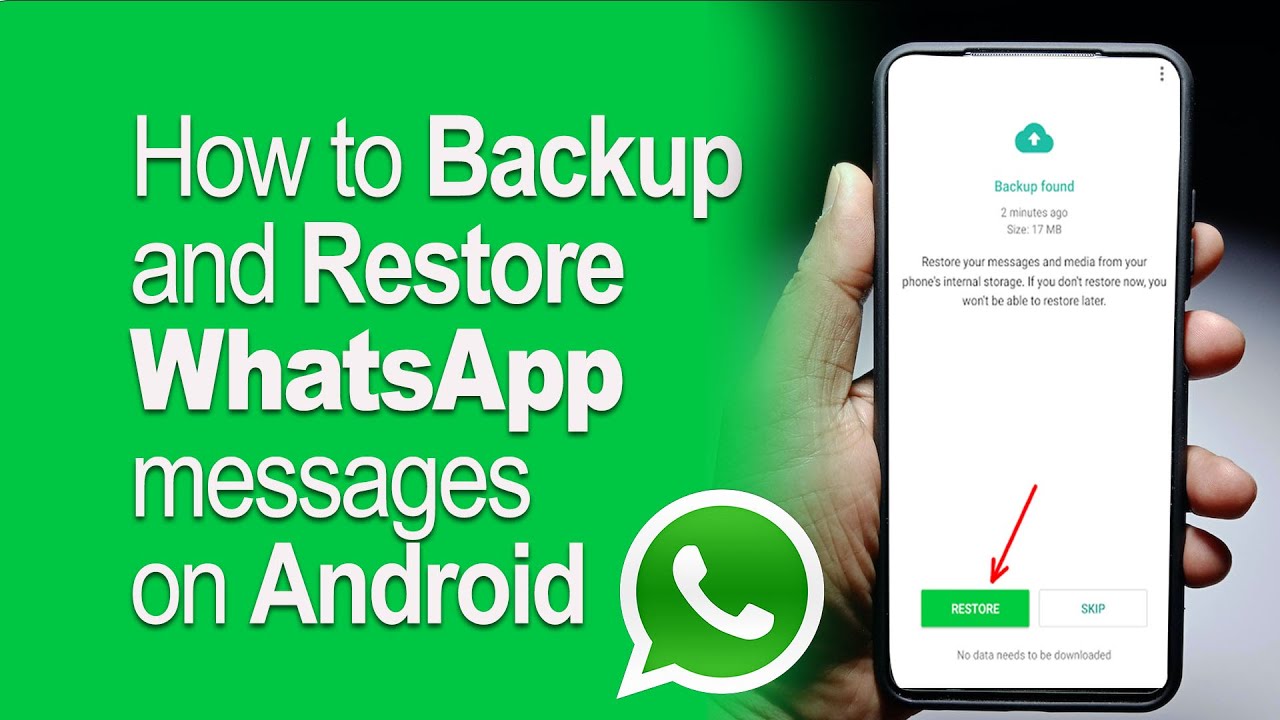
- Tap Restore when prompted to restore from Google Drive.
- Wait for the process to complete and tap Next.

For iPhone Users:
- Install WhatsApp from the App Store.
- Open it and verify your phone number.
- Tap Restore Chat History when prompted.
- WhatsApp will restore from your latest iCloud backup.
✅ You must use the same phone number and Google/iCloud account used during backup.
🗃️ Local Backup (Android Only)
In addition to Google Drive, Android devices automatically store local backups:
- Stored in:
Internal Storage > WhatsApp > Databases - WhatsApp keeps up to 7 days of local backup history.
You can manually copy these files to a computer or new device to restore older chats.
🧰 How to Manage WhatsApp Chat History
Managing your WhatsApp data helps you keep things organized and prevents your device from running out of space.
⭐ 1. Use Starred Messages
Long-press any important message and tap the star icon.
To view starred messages:
- Go to Settings > Starred Messages
- Or open a chat and tap the contact name > Starred Messages
🧹 2. Clear or Delete Chats
- Go to the chat > Tap the three-dot menu > More > Clear Chat or Delete Chat
- You can also clear or delete all chats via:
Settings > Chats > Chat History
📁 3. Export Chat History
You can save conversations outside of WhatsApp for records or legal use.
Steps:
- Open the chat.
- Tap three dots > More > Export Chat.
- Choose With Media or Without Media.
- Send the file via email, Google Drive, or another method.
🗂️ 4. Archive Inactive Chats
To declutter your chat screen without deleting:
- Swipe left (iPhone) or long press (Android) > Tap Archive
Archived chats can be viewed and restored any time from the Archived folder.
🛡️ Best Practices for WhatsApp Chat History
- Enable automatic backups (daily is best for frequent users).
- Free up space regularly by deleting large files or old messages.
- Check backup status to make sure it’s working.
- Secure your backups with Google or iCloud password protection.
- Consider using two-step verification for extra security.
🧠 Common Backup & Restore Issues (And Fixes)
| Issue | Fix |
|---|---|
| No backup found | Ensure you’re using the correct Google/iCloud account and phone number. |
| Restore stuck at 0% | Check internet connection and available storage. Restart the app. |
| Insufficient iCloud/Google storage | Free up space or upgrade your plan. |
| Old messages missing | Backups only restore data available at the time of backup. Use local files for older data. |
❓ Frequently Asked Questions (FAQs)
Q1: Can I back up WhatsApp without Google Drive or iCloud?
Yes. On Android, WhatsApp creates local backups stored in your phone’s memory. You can manually transfer these.
Q2: How often should I back up my WhatsApp?
Daily backups are recommended for regular users. Weekly is acceptable if your usage is light.
Q3: Can I back up WhatsApp chats selectively?
No. WhatsApp backups include all chats. However, you can export individual chats manually.
Q4: Are backups encrypted?
Yes. WhatsApp offers end-to-end encrypted backups. Enable it under:Settings > Chats > Chat Backup > End-to-End Encrypted Backup
Q5: Can I restore WhatsApp backup across different phone numbers?
No. Backups are tied to the specific phone number used during the backup.
📌 Conclusion
Your WhatsApp chat history holds everything from personal memories to important business details. Learning how to back it up, restore it, and manage it ensures you never lose valuable information again. Whether you’re switching devices, cleaning up old chats, or recovering lost messages, WhatsApp offers all the tools you need—just make sure you’re using them wisely.
Take a few minutes today to check your backup settings—you’ll thank yourself later!